USB flash drives are one of the most common ways to store, move, and back up important files. They are small, easy to carry, and simple to use with laptops, desktop computers, smart TVs, printers, and other devices. However, because they are used so often, they can also become damaged, corrupted, or unreadable over time. When a USB drive stops working, it can feel stressful, especially if it contains school files, office documents, photos, videos, or business data.
The good news is that files can often be recovered from broken USB flash drives, but the right recovery method depends on the type of damage. Sometimes the issue is physical, such as a bent connector or broken circuit board. Other times, the drive is logically damaged, meaning the files are still there but the system cannot read them correctly. Understanding the difference is the first step toward safe file recovery.
What Does a Broken USB Flash Drive Mean?
A broken USB flash drive does not always mean the data is gone forever. In many cases, the drive may only have a damaged file system, a loose connector, or a software error. If your computer detects the USB drive but cannot open it, the problem may be related to corruption. If the USB drive does not show up at all, the issue may be physical or hardware related.
USB flash drives can fail in different ways. Some drives stop working suddenly, while others show warning signs before becoming unreadable. These warning signs may include slow file transfer, missing folders, error messages, files turning into shortcuts, or the computer asking you to format the drive. When these problems appear, it is important not to panic and not to format the drive immediately.
Common Reasons USB Flash Drives Stop Working
There are several reasons why USB flash drives become damaged or unreadable. One common reason is physical damage. Since USB drives are small and portable, they can easily be dropped, stepped on, bent, or damaged while plugged into a computer. A broken connector can prevent the device from making a proper connection.
Another common reason is file system corruption. This can happen when the USB drive is removed without safely ejecting it, when the computer shuts down during file transfer, or when the drive is used on different devices. Virus or malware attacks can also damage files and make the drive unreadable.
USB flash drives can also fail because of age and repeated use. Like all storage devices, they have a limited life cycle. After a long time, the memory cells inside the drive can wear out, causing errors and data loss. Cheap or low-quality drives may fail faster than branded and reliable storage devices.
First Things to Do Before Recovery
Before trying to recover data, stop using the USB flash drive immediately. Do not copy new files to it, do not format it, and do not run random repair tools without understanding the risk. Every new action can reduce the chance of successful recovery.
If the USB drive is physically broken, avoid forcing it into a computer port. Forcing a damaged connector can make the problem worse. If the drive is wet, burned, cracked, or visibly damaged, it is better to contact a professional data recovery service.
For less serious issues, you can try basic checks first. Plug the USB drive into another USB port. Try it on another computer. Avoid using USB hubs and connect it directly to the computer. Sometimes the issue is not with the drive but with the port, cable, system driver, or computer settings.
Check Whether the USB Drive Is Detected
The next step is to check whether your computer detects the USB flash drive. On Windows, you can open Disk Management to see if the drive appears. If it appears there but does not show in File Explorer, the drive may have a partition or file system issue. If it appears with no drive letter, assigning a new drive letter may help.
On Mac, you can check Disk Utility. If the USB drive appears in Disk Utility but does not mount, the file system may be damaged. In that case, you may try the built-in First Aid feature. However, if the drive contains highly important files, it is safer to recover the data first before repairing the drive.
If the USB drive does not appear anywhere, the issue may be more serious. It may have internal hardware failure, damaged controller chip, or broken connection points. In this situation, software recovery usually cannot help because the computer cannot communicate with the device.
Recover Files from a Corrupted USB Flash Drive
If your USB flash drive is detected but files are missing or inaccessible, data recovery software may help. Recovery tools scan the drive and search for lost files, deleted files, or damaged file structures. This is useful when the drive asks to be formatted, shows empty folders, or displays errors like “USB device not recognized” or “The file or directory is corrupted.”
Before using recovery software, make sure you do not install the software on the damaged USB drive. Install it on your computer instead. After scanning the USB drive, save the recovered files to another safe location, such as your computer hard drive or an external storage device. Never save recovered files back to the same broken USB drive.
Data recovery software can recover many file types, including documents, images, videos, audio files, compressed folders, and project files. However, the success rate depends on how damaged the USB drive is and whether new data has overwritten the old files.
Use Windows Command Prompt for Minor Errors
For minor file system errors, Windows users can try the CHKDSK command. This tool checks the drive for errors and may repair some logical problems. To use it, connect the USB drive, find its drive letter, open Command Prompt as administrator, and run a command like chkdsk E: /f, replacing E with the correct drive letter.
This method may help when the USB drive is readable but shows errors. However, CHKDSK is not always safe for badly damaged drives because it may modify the file structure. If your data is very important, use recovery software first or contact a professional before running repair commands.
Also Check: Seagate External Hard Drive Not Working? Here’s How to Fix It
Recover Files from a Physically Broken USB Drive
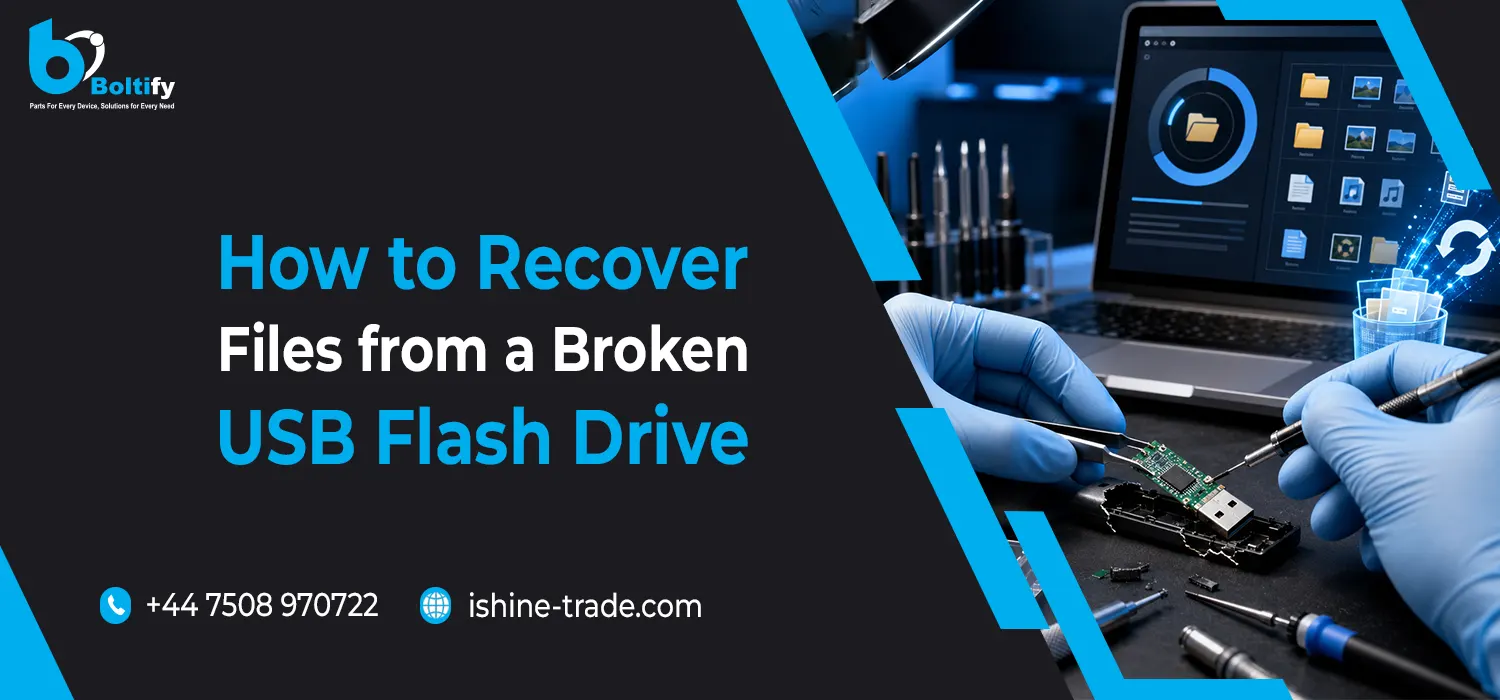
Physical damage is more difficult than file corruption. If the USB connector is bent, loose, or broken, the drive may not connect properly. In some cases, a technician can repair or resolder the connector to make the drive readable again. If the internal chip is safe, the files may still be recoverable.
If the circuit board is cracked, burned, or damaged, professional recovery is usually required. Experts may remove the memory chip and use special tools to recover data directly. This type of recovery should not be attempted at home because one wrong move can permanently damage the drive.
For physically broken USB flash drives, avoid DIY tricks like freezing the drive, heating it, shaking it, or repeatedly plugging it in. These methods are risky and can make recovery harder. Professional data recovery may cost more, but it is often the safest option for important files.
What to Do If the USB Drive Asks to Format
One of the most common problems is when the computer says, “You need to format the disk before you can use it.” When this happens, do not click format if you need the files. Formatting can remove the file system and make recovery more difficult.
Instead, cancel the format message and use recovery software to scan the USB drive. After recovering your files and saving them somewhere safe, you can format the drive if you still want to reuse it. However, if the same problem happens again, it is better to replace the USB drive rather than trust it with important data.
How to Avoid Losing Files Again
The best way to protect data is to keep more than one copy. USB flash drives are useful for quick storage and transfer, but they should not be the only place where important files are saved. Keep backups on your computer, cloud storage, or an external hard drive.
Always safely eject the USB drive before removing it from the computer. Avoid unplugging it during file transfer. Keep the drive away from water, heat, dust, and physical pressure. Use antivirus software if you often connect the USB drive to public computers.
It is also a good idea to replace old or unreliable USB drives. If a drive becomes slow, shows errors, or disconnects often, move your files to a new storage device. Waiting too long can lead to complete failure.
When Should You Contact a Professional?
You should contact a professional data recovery service if the USB drive is physically damaged, not detected by any computer, making unusual heat, or contains very important data. You should also avoid home recovery if the files are related to business, legal work, academic projects, or personal memories that cannot be replaced.
Professional recovery experts have tools that normal users do not have. They can repair damaged connectors, work with memory chips, and recover data from drives that software cannot detect. Although professional recovery may cost more, it can be the best option when the files are valuable.
Final Thoughts
Recovering files from broken USB flash drives is possible in many cases, but the recovery method depends on the type of damage. If the drive is detected, recovery software or basic system tools may help. If the drive is physically damaged, professional repair is usually the safest choice. The most important rule is to stop using the damaged drive and avoid formatting it before recovering your files.
USB flash drives are helpful and convenient, but they are not perfect backup devices. To avoid future stress, always keep extra copies of important files and replace damaged drives early. For businesses or individuals looking for reliable hardware solutions, Boltify Limited, a wholesale mobile phone parts and accessories supplier and computer accessories supplier in the UK, offers high-quality USB drives and accessories that can help reduce the risk of data loss. With the right steps and trusted products, you can improve your chances of recovering lost data and protecting your files in the future.
FAQs
Can files be recovered from broken USB flash drives?
Yes, files can often be recovered from broken USB flash drives, especially if the memory chip inside the drive is still safe. If the problem is file corruption, recovery software may help. If the problem is physical damage, a professional data recovery service may be needed.
Should I format my USB drive if it asks me to?
No, you should not format the USB drive if you still need the files. Formatting may make recovery harder. First, try to recover your data using safe recovery software or contact a professional if the data is very important.
Why is my USB flash drive not showing on my computer?
Your USB flash drive may not show because of a damaged port, missing drive letter, corrupted file system, broken connector, or internal hardware failure. Try another USB port and another computer first. If it still does not appear, the drive may need professional inspection.
Can I repair a physically broken USB flash drive at home?
You should not try to repair a physically broken USB drive at home unless you have proper technical skills. Broken connectors, circuit boards, and memory chips are delicate. A small mistake can permanently damage the device and reduce the chance of data recovery.
Is data recovery software safe for USB drives?
Data recovery software is generally safe when used correctly. Install the software on your computer, scan the broken USB drive, and save recovered files to another location. Do not save recovered files back to the same damaged USB drive.
How can I protect my USB flash drive from future damage?
You can protect your USB flash drive by safely ejecting it before removal, keeping it away from water and heat, avoiding physical pressure, and using antivirus protection. Most importantly, keep backups of important files in more than one place.