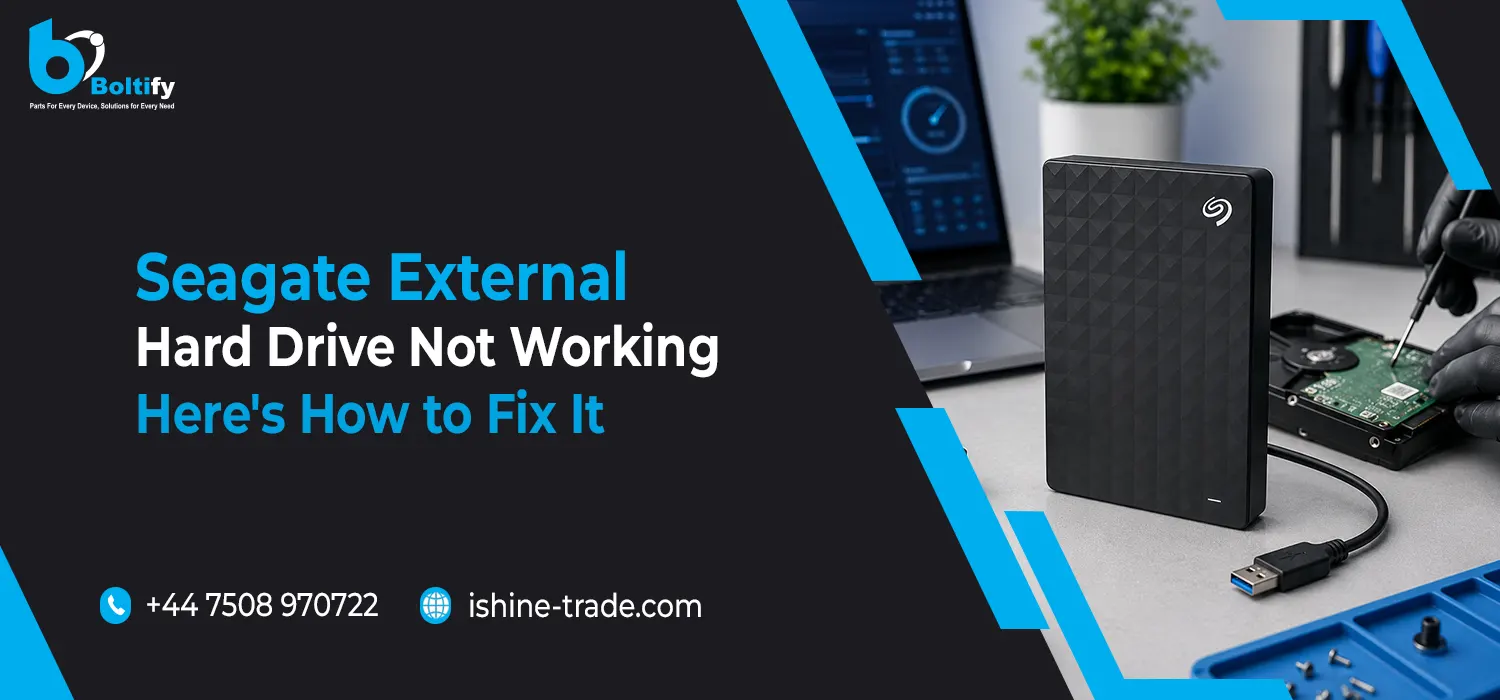
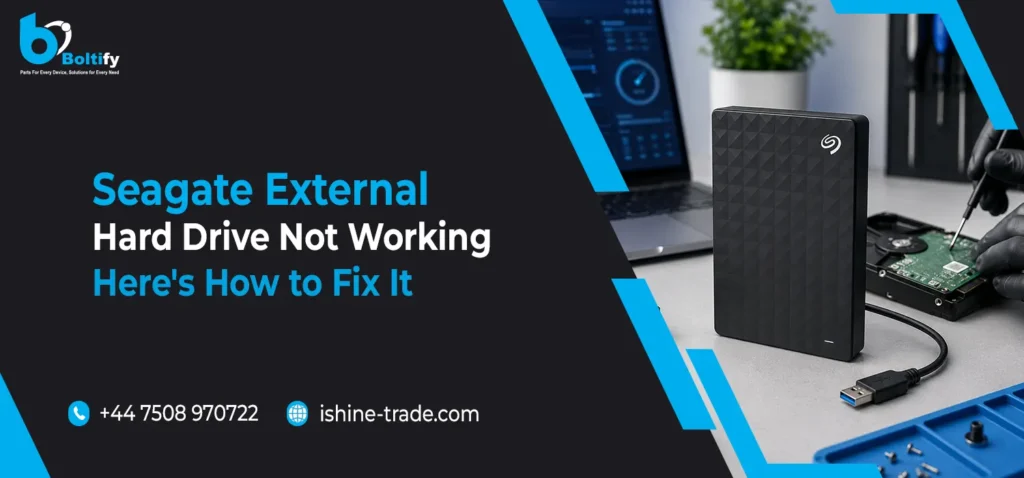
A Seagate external hard drive is a reliable storage device for saving important files, photos, videos, backups, work documents, and business data. However, like any storage device, it can sometimes stop working, fail to show up on your computer, disconnect again and again, or appear in Disk Management but not in File Explorer. When this happens, it can be stressful, especially if the drive contains important data.
The good news is that many Seagate external hard drive problems can be fixed with simple troubleshooting. In many cases, the issue is not permanent damage. It may be caused by a loose USB cable, a faulty USB port, missing drive letter, outdated driver, file system error, or power-related problem. Before assuming the drive is dead, it is important to check the most common causes step by step.
Why Is My Seagate External Hard Drive Not Working?
A Seagate external hard drive may stop working for several reasons. Sometimes the problem is as simple as a damaged USB cable or a loose connection. If the cable is not properly connected, your computer may not detect the drive at all. In other cases, the USB port may not provide enough power, especially when the drive is connected through a USB hub instead of directly to the computer.
Software issues can also cause detection problems. Windows may recognize the drive in Disk Management but fail to show it in File Explorer because it does not have a drive letter assigned. Microsoft’s Disk Management tool is designed to initialize disks, create and format volumes, and change drive letters, which makes it useful for fixing storage detection issues.
Another common reason is file system corruption. If the drive was removed without safely ejecting it, disconnected during file transfer, or affected by a system crash, the file system may become unreadable. In more serious cases, the drive may have physical damage, especially if it was dropped, exposed to moisture, or making unusual clicking or beeping sounds.
What Should You Check First?
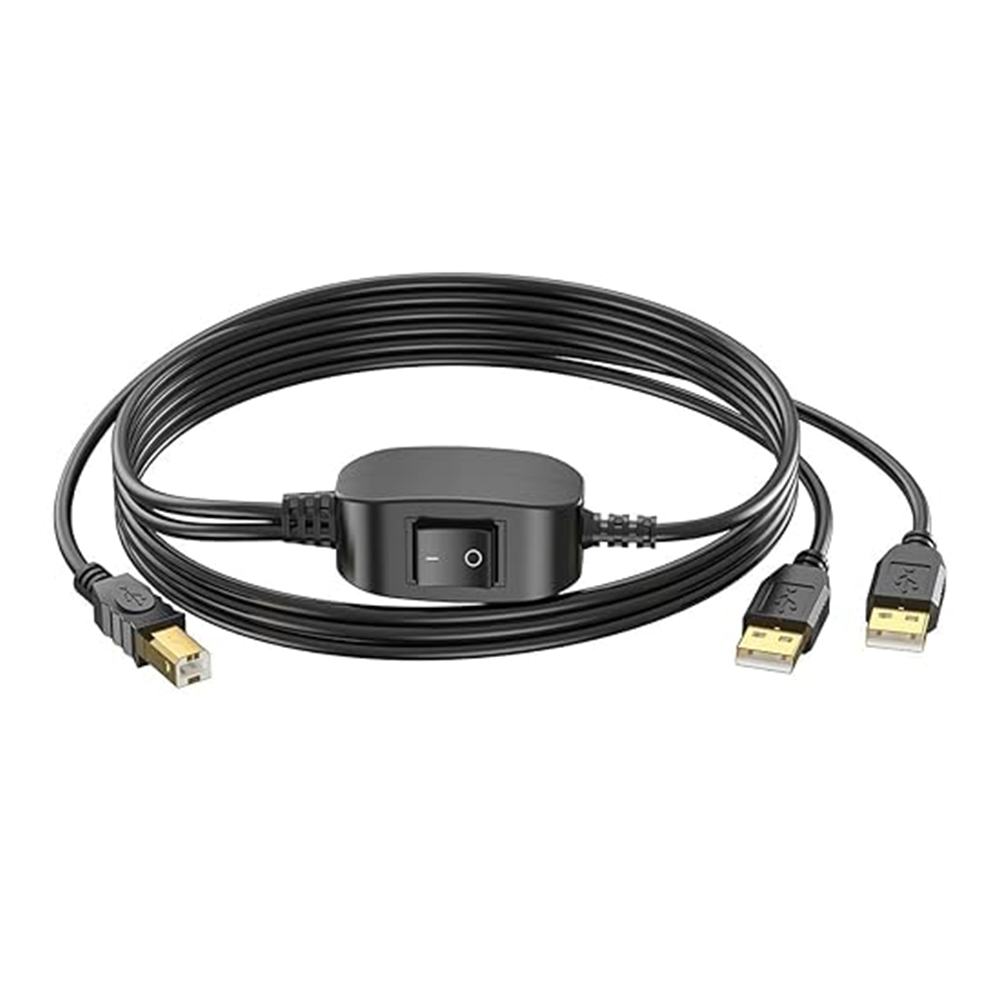
Before trying advanced fixes, start with the basic checks. Connect your Seagate external hard drive directly to your computer instead of using a USB hub. Try another USB port and, if possible, another USB cable. Seagate’s own USB external troubleshooting guidance also recommends trying a different port, a different cable, and another computer to confirm whether the issue is with the drive or the computer.
If the drive works on another computer, the problem is likely related to your original computer’s USB port, driver, settings, or operating system. If the drive does not work on any computer, the issue may be with the cable, enclosure, power supply, or the drive itself.
You should also listen carefully to the drive. A normal external hard drive may make a soft spinning sound when connected. However, repeated clicking, grinding, or beeping can be a warning sign of mechanical failure. In that case, do not continue forcing the drive to run, because repeated attempts may make data recovery more difficult.
How to Fix a Seagate External Hard Drive Not Showing Up on Windows
If your Seagate external hard drive is not showing in File Explorer, open Disk Management to check whether Windows detects it. You can do this by right-clicking the Start button and selecting Disk Management. If the drive appears there but not in File Explorer, the problem may be related to the drive letter, partition, or file system.
If the drive has no letter assigned, right-click the volume and choose the option to change or assign a drive letter. Microsoft confirms that Disk Management can be used to change or assign drive letters, which can help a drive appear properly in Windows.
If the drive appears as “Offline,” bring it online through Disk Management. If it appears as “Unallocated,” be careful. Creating a new volume or formatting the drive may erase access to existing data. If you have important files on the drive, do not format it immediately. Instead, consider using professional data recovery support before making changes.
What If the Seagate External Hard Drive Is Not Detected at All?
If your Seagate external hard drive does not appear in File Explorer, Disk Management, or Device Manager, the computer may not be detecting the hardware. In this case, try a different USB cable, another USB port, and another computer. If the drive uses an external power adapter, make sure the adapter is working and connected properly.
Seagate notes that if an external drive is not detected, the issue is often related to hardware or a corrupted file system, and simply installing a driver may not solve the problem. This means you should avoid downloading random third-party drivers from unknown websites. Most Seagate external drives work with standard operating system drivers, so the real issue is often connection, file system, or hardware related.
If the drive still does not appear anywhere, the problem may be with the drive enclosure, USB controller, or internal disk. At this point, if the data is important, it is better to stop experimenting and contact a professional data recovery service.
How to Fix a Seagate External Hard Drive That Lights Up but Does Not Open
Sometimes a Seagate external hard drive light turns on, but the drive does not open. This usually means the drive is receiving power, but the computer is not able to access the storage properly. The issue may be a damaged cable, weak USB port, corrupted partition, or file system error.
Start by connecting the drive directly to your computer. Avoid front-panel USB ports on desktop computers if possible, because rear USB ports are often more stable. If the light turns on but nothing appears, open Disk Management and check the drive status. If the drive is visible but has no letter, assign a new drive letter. If it appears as RAW, the file system may be corrupted.
A RAW drive means Windows cannot read the file system properly. Formatting may make the drive usable again, but it can also remove access to your files. If the drive contains important data, recover the data first before formatting.
How to Fix a Seagate External Hard Drive Making Clicking or Beeping Sounds
If your Seagate external hard drive is making clicking or beeping sounds, do not ignore it. These sounds may indicate a mechanical or power-related problem. A beeping sound can happen when the drive is not receiving enough power, while clicking may point to internal mechanical failure.
Try connecting the drive with a different USB cable and a different USB port. If it is a desktop external drive with a power adapter, test the adapter and power outlet. If the sound continues, stop using the drive. Do not open the drive at home, and do not keep plugging it in repeatedly. Physical damage requires professional handling, especially if the data is valuable.
How to Update or Reinstall Drivers for a Seagate External Hard Drive
If the drive appears in Device Manager but does not work properly, you can try updating or reinstalling the USB storage driver. Open Device Manager, find the drive under Disk Drives or Universal Serial Bus controllers, right-click it, and choose update or uninstall. After uninstalling, restart the computer and reconnect the drive so Windows can reinstall the driver automatically.
This can help when the issue is caused by a temporary driver conflict. However, if the drive is physically damaged or the file system is corrupted, updating the driver alone will not fix it. Seagate’s support information also makes it clear that driver installation is not always the solution when an external drive is not detected.
Also check: How to Fix Huawei P50 Pro Charging Issues: Troubleshooting Tips
Should You Format the Seagate External Hard Drive?
Formatting can fix some file system problems, but it should be used carefully. If your Seagate external hard drive is empty or you already have a backup, formatting may help make the drive usable again. However, if the drive contains important data, formatting should not be your first step.
Windows may ask you to initialize or format the drive when it cannot read it. Microsoft explains that Disk Management can initialize new disks and prepare them for use, but this is mainly suitable for new or empty drives. If your drive already had files on it, initializing or formatting may cause data loss. In that situation, recover your data first and format the drive only after your files are safe.
How to Prevent Seagate External Hard Drive Problems in the Future
To keep your Seagate external hard drive working properly, always eject it safely before removing it from your computer. Avoid unplugging it during file transfer, because sudden disconnection can corrupt files or damage the file system. Keep the drive on a stable surface and protect it from drops, heat, moisture, and dust.
It is also a good idea to keep more than one backup of important files. An external hard drive is useful, but no storage device is completely failure-proof. For important data, use at least one additional backup, such as cloud storage or another external drive.
Seagate also provides Toolkit software for some storage products, which can help users manage backups and drive features more easily. Using reliable backup software can reduce the risk of losing important files if the drive develops a problem later.
When Should You Contact a Professional?
You should contact a professional if your Seagate external hard drive is not detected on any computer, makes clicking or grinding sounds, shows as RAW with important data, or asks to be formatted even though it contains files. You should also get expert help if the drive was dropped or physically damaged.
Trying too many fixes without understanding the problem can make things worse. If the data is important, avoid formatting, initializing, opening the drive, or using random repair tools. A professional technician or data recovery specialist can check the drive safely and suggest the best solution.
Final Thoughts
A Seagate external hard drive not working does not always mean the drive is permanently damaged. Many issues can be fixed by checking the USB cable, trying another port, assigning a drive letter, updating drivers, or checking the drive in Disk Management. However, if the drive contains important data, you should be careful before formatting or initializing it. For users who rely on external drives and other tech accessories, suppliers like Boltify Limited, a trusted wholesale mobile phone parts and accessories supplier in the UK, provide quality replacement cables, adapters, and accessories to ensure your devices stay functional and protected.
The safest approach is to start with simple checks and move slowly toward advanced troubleshooting. If the drive makes unusual sounds, is not detected on any computer, or shows signs of physical failure, professional help is the best option. With the right steps, and using reliable accessories from Boltify Limited, you may be able to restore access to your Seagate external hard drive and protect your valuable data from permanent loss.
FAQs About Seagate External Hard Drive Not Working
Why is my Seagate external hard drive not showing up?
Your Seagate external hard drive may not show up because of a loose USB cable, faulty USB port, missing drive letter, corrupted file system, outdated driver, or hardware problem. Start by trying another USB port, another cable, and another computer to confirm where the problem is.
Why does my Seagate external hard drive light turn on but not work?
If the light turns on but the drive does not open, the drive may be receiving power but not communicating properly with the computer. This can happen because of a damaged cable, file system error, missing drive letter, or internal drive issue.
How do I fix my Seagate external hard drive not detected in Windows?
Open Disk Management and check whether the drive appears there. If it appears without a drive letter, assign one. If it appears as Offline, bring it online. If it appears as RAW or Unallocated, avoid formatting if you need the data and consider data recovery first.
Should I format my Seagate external hard drive if it is not working?
You should only format it if you do not need the data or already have a backup. Formatting may make the drive usable again, but it can also remove access to your files. If the drive contains important data, recover the files before formatting.
Why is my Seagate external hard drive making clicking sounds?
Clicking sounds can indicate mechanical failure or a serious internal problem. Stop using the drive, avoid repeatedly plugging it in, and contact a professional data recovery service if the files are important.
Can a bad USB cable stop a Seagate external hard drive from working?
Yes, a bad or loose USB cable can stop the drive from being detected. Trying another cable is one of the first and easiest troubleshooting steps.
Is my Seagate external hard drive dead if it is not detected?
Not always. The issue may be caused by the USB cable, port, driver, or file system. However, if the drive is not detected on multiple computers and makes unusual sounds, it may have a serious hardware problem.
How can I protect my Seagate external hard drive from future problems?
Always eject the drive safely, avoid disconnecting it during file transfers, keep it away from heat and moisture, and maintain an extra backup of important files. This reduces the risk of data loss and drive corruption.